> ## Documentation Index
> Fetch the complete documentation index at: https://docs.energy.nayax.com/llms.txt
> Use this file to discover all available pages before exploring further.
# Requesting Discount Access
This guide outlines the steps your drivers will follow to request access to a discount using the **mobile app**. Share these instructions along with the discount codes generated in [Creating Driver Discounts](/guides/create-Driver-Discount).
## Prerequisites
* Download the **mobile app**
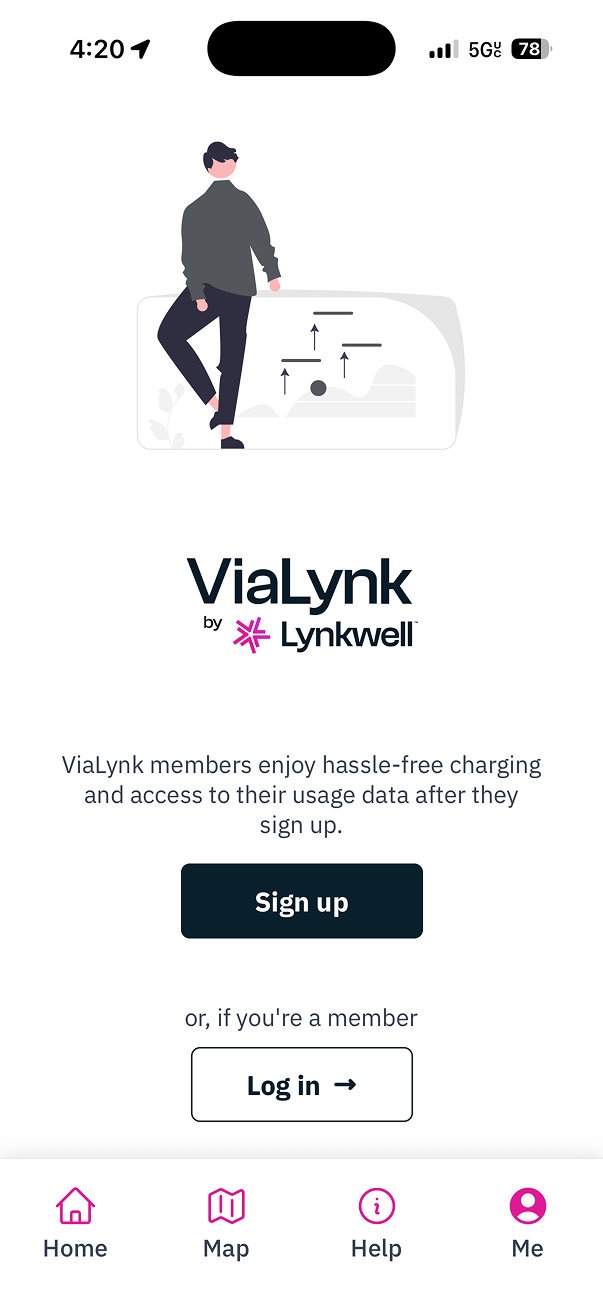
* Log in to an existing account or [create a new account](/guides/create-an-Account)
## Steps
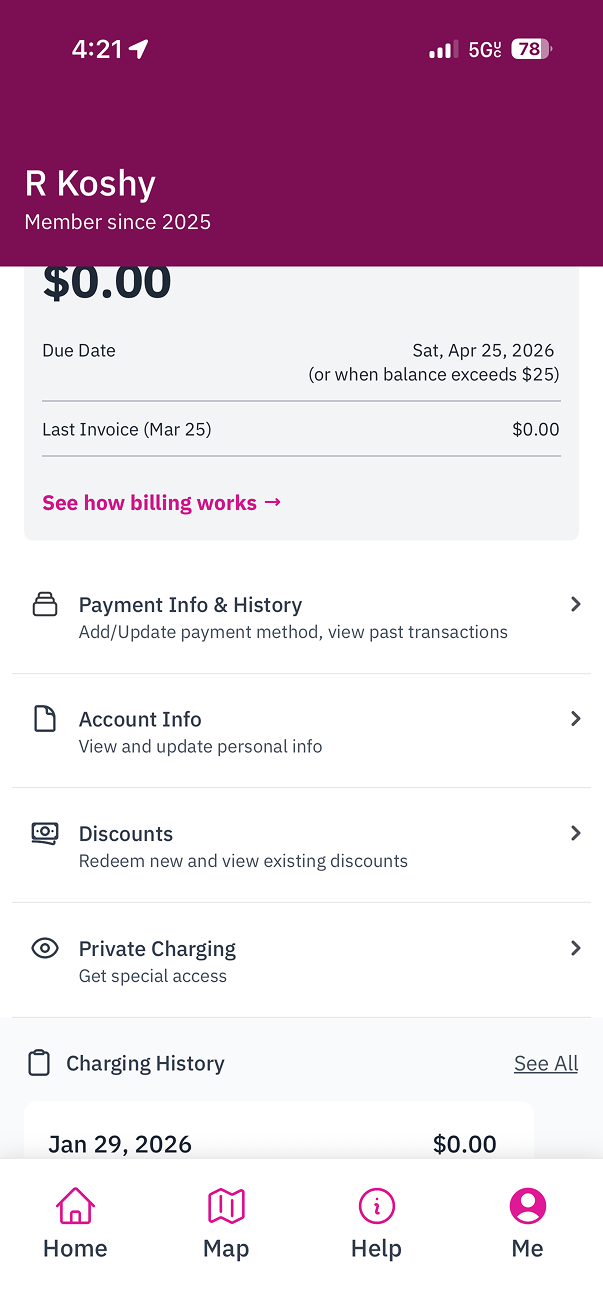
1. Select the `Me` tab in the bottom navigation bar.
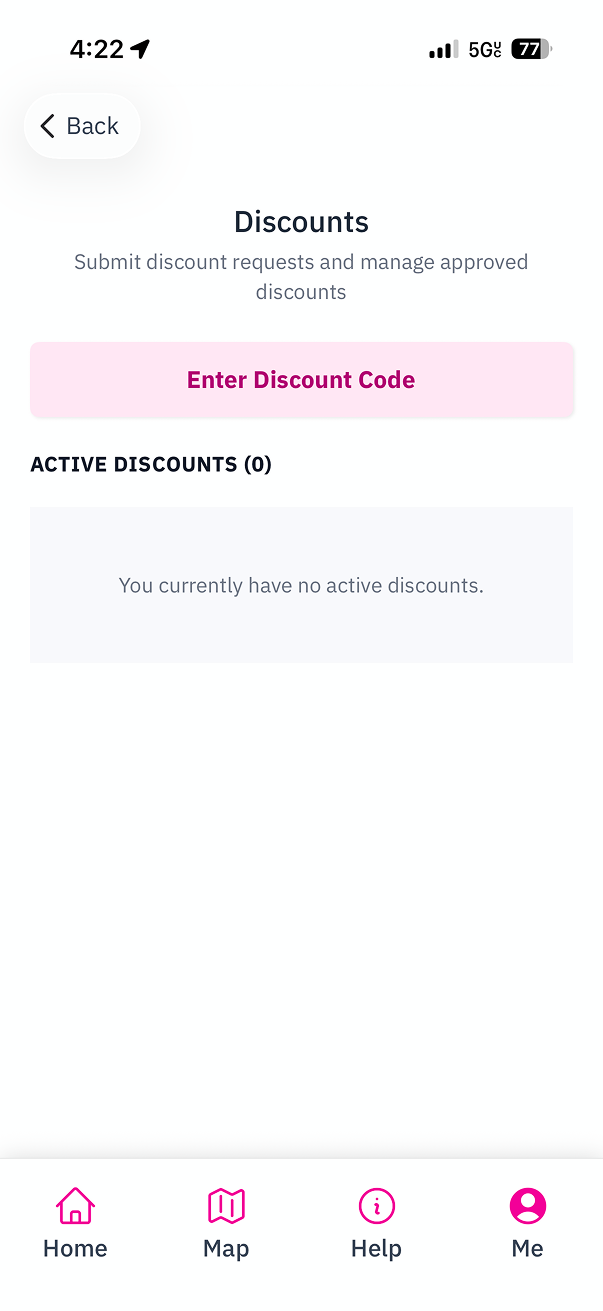
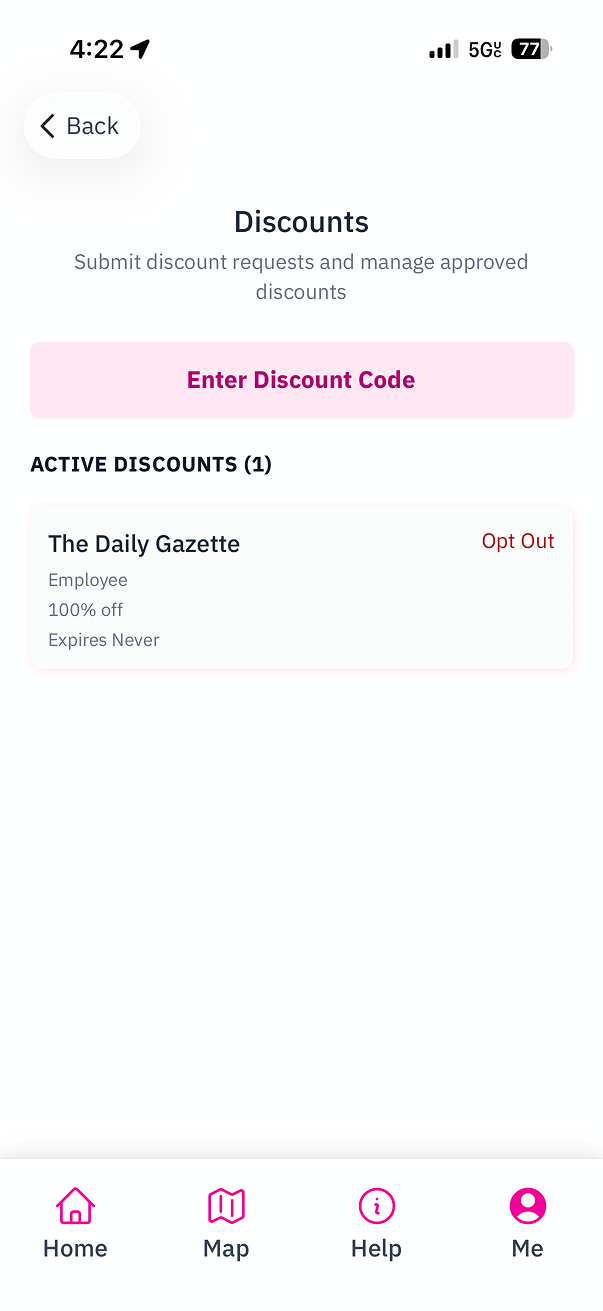
2. Select `Discounts` to navigate to the Discounts screen.
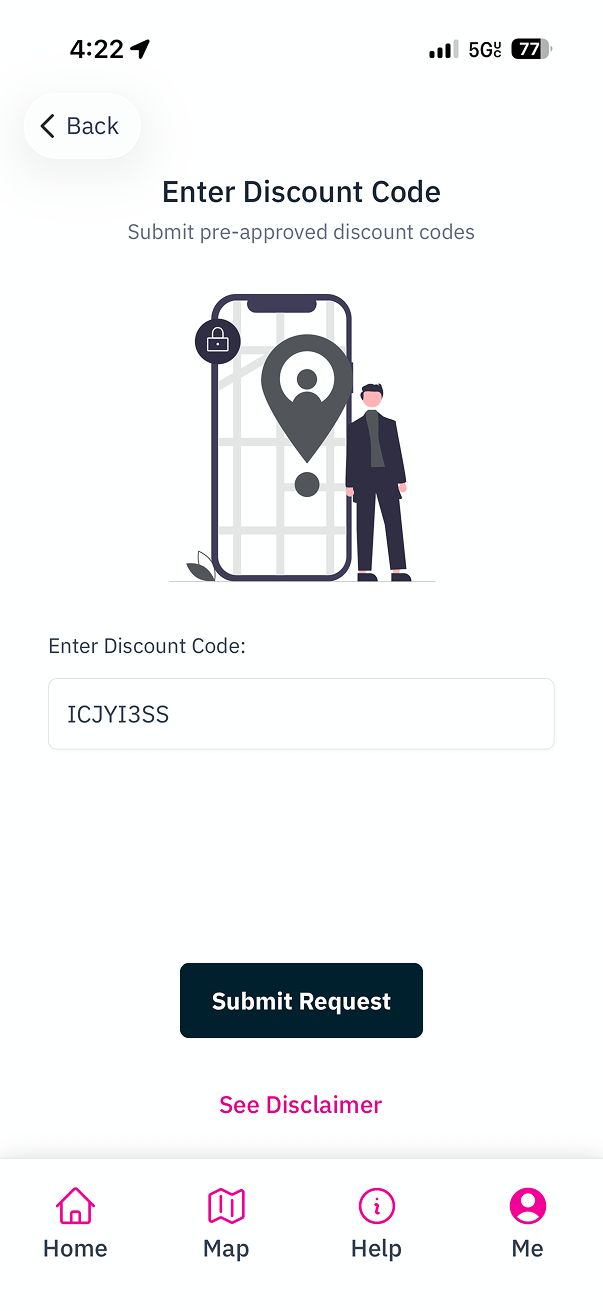
3. Tap the `Enter Discount Code` button.
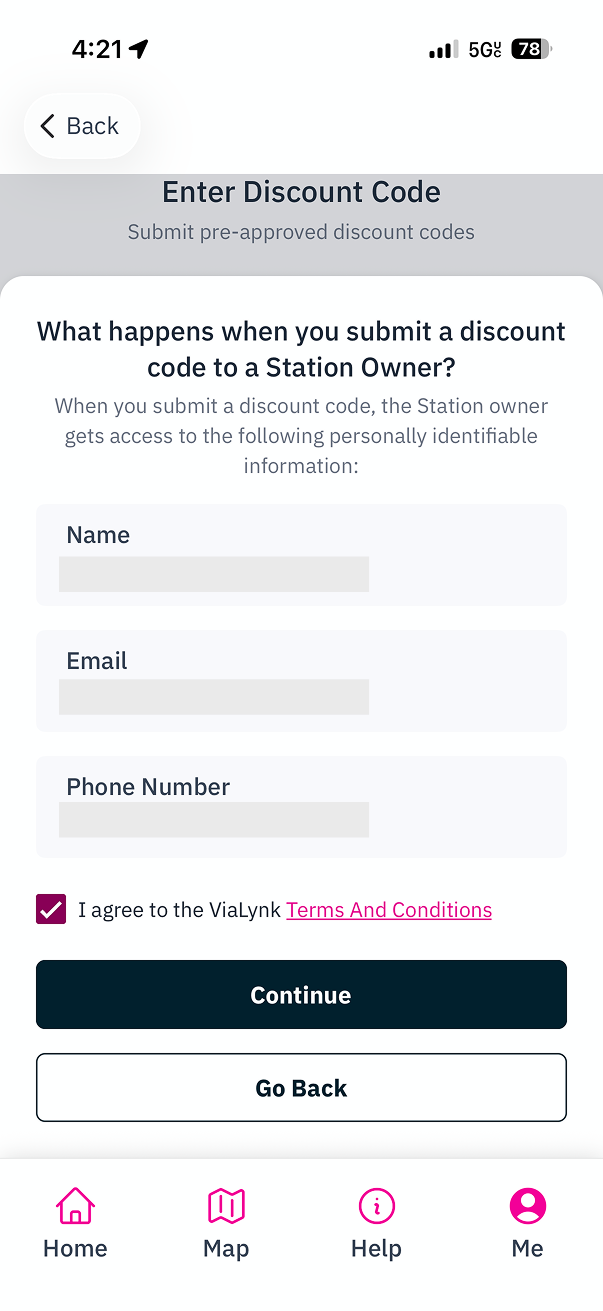
4. When you submit a discount code, the Station Owner gets access to the following personally identifiable information: your **Name**, **Email**, and **Phone Number**. You will need to agree to these terms before proceeding.
Enter the discount code provided by your Site Host and tap `Submit Request`.
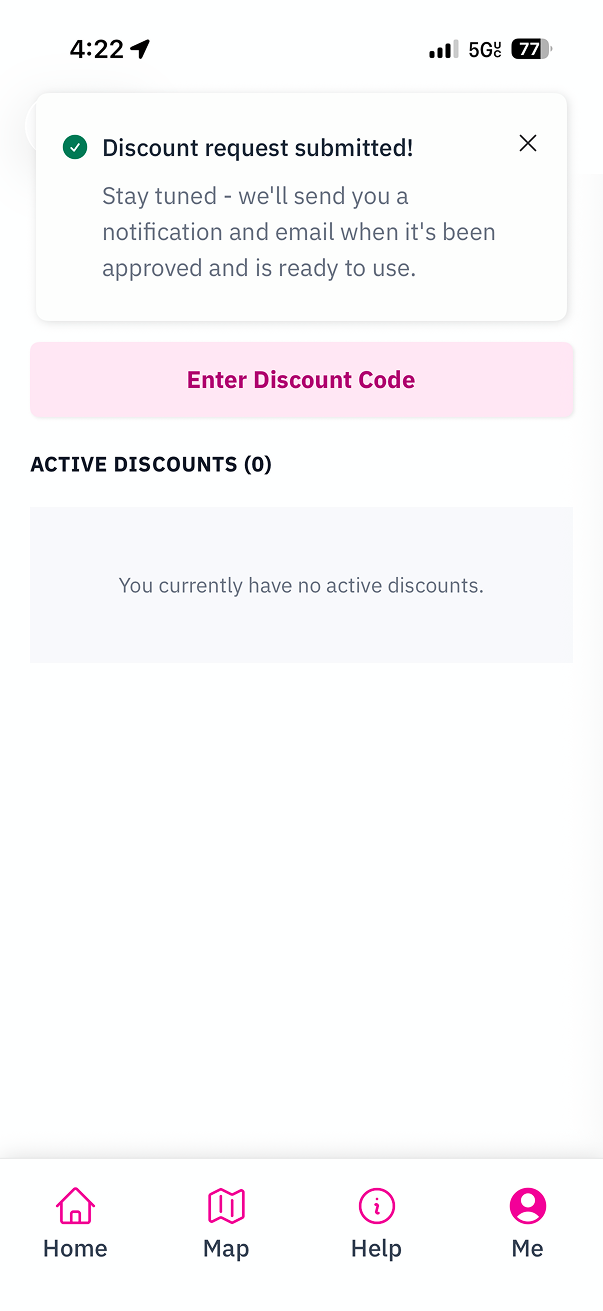
5. You will see a confirmation message that your discount request has been submitted.
If the discount is set to auto-approve, the discount will appear under **Active Discounts** right away. Otherwise, you will receive a notification and email once the Site Host approves your request.
## Related Guides:
A guide for drivers on creating an account in our Mobile App.
A guide for Site Hosts on creating discounts for drivers via **Site Manager**.