

Set Location to Private in Network Manager
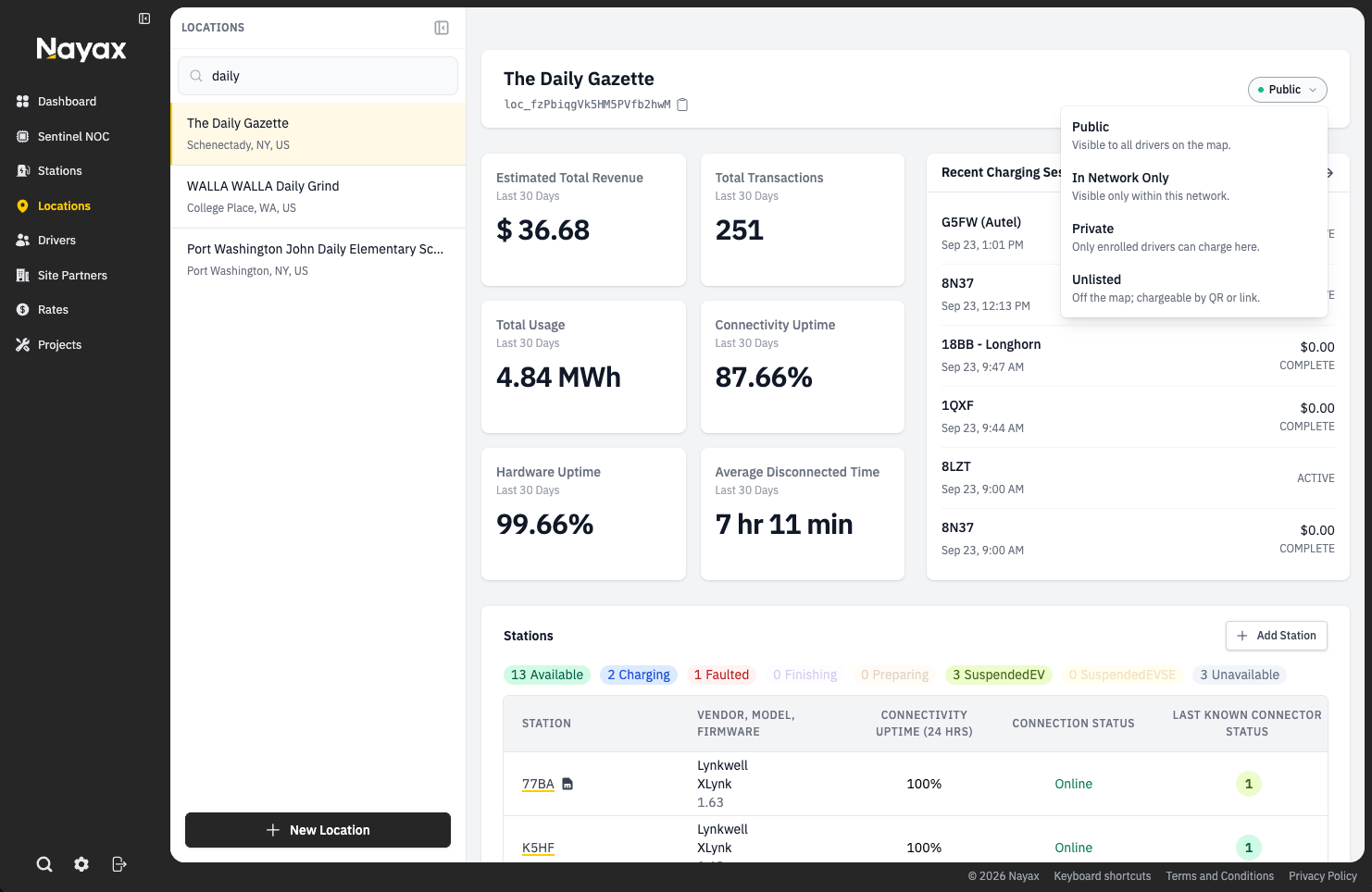
The stations can be set to either Public or Private at the location level.- Select
Locationsfrom the left navigation menu - Search and select the location you would like to set to Private
- Click the access badge in the top right corner of the location page (for example,
Public) to see the location’s current access level - Select Private from the dropdown. Only enrolled drivers will be able to charge at the location’s stations
Adding Drivers via Site Manager
- If the driver has not already created an account in the mobile app, direct them to download the app and sign up for an account (see Creating an Account)
- Obtain driver’s
Digital Driver ID(see Creating a Digital Driver ID for instructions) - In Site Manager, the Site Host will navigate to the
Driverstab - Locate the section for
Private Chargingand select theAdd Drivers Manuallybutton in the top right corner of the section - Add the
Driver Digital IDwhen prompted (it is recommended to copy and past this value to avoid errors in typing) and pressSubmit Digital ID - The Site Host will receive a confirmation message confirming the driver has been added successfully, with an option to
Add Moredrivers - If no other drivers need to be added, please select the close button at the top right-hand of the confirmation popup and then
Cancel
Related Guides:
Create an Account in Mobile App
A guide for drivers on creating an account in our Mobile App.
Find Digital Driver ID
A guide for adding drivers to Private Charging Locations.